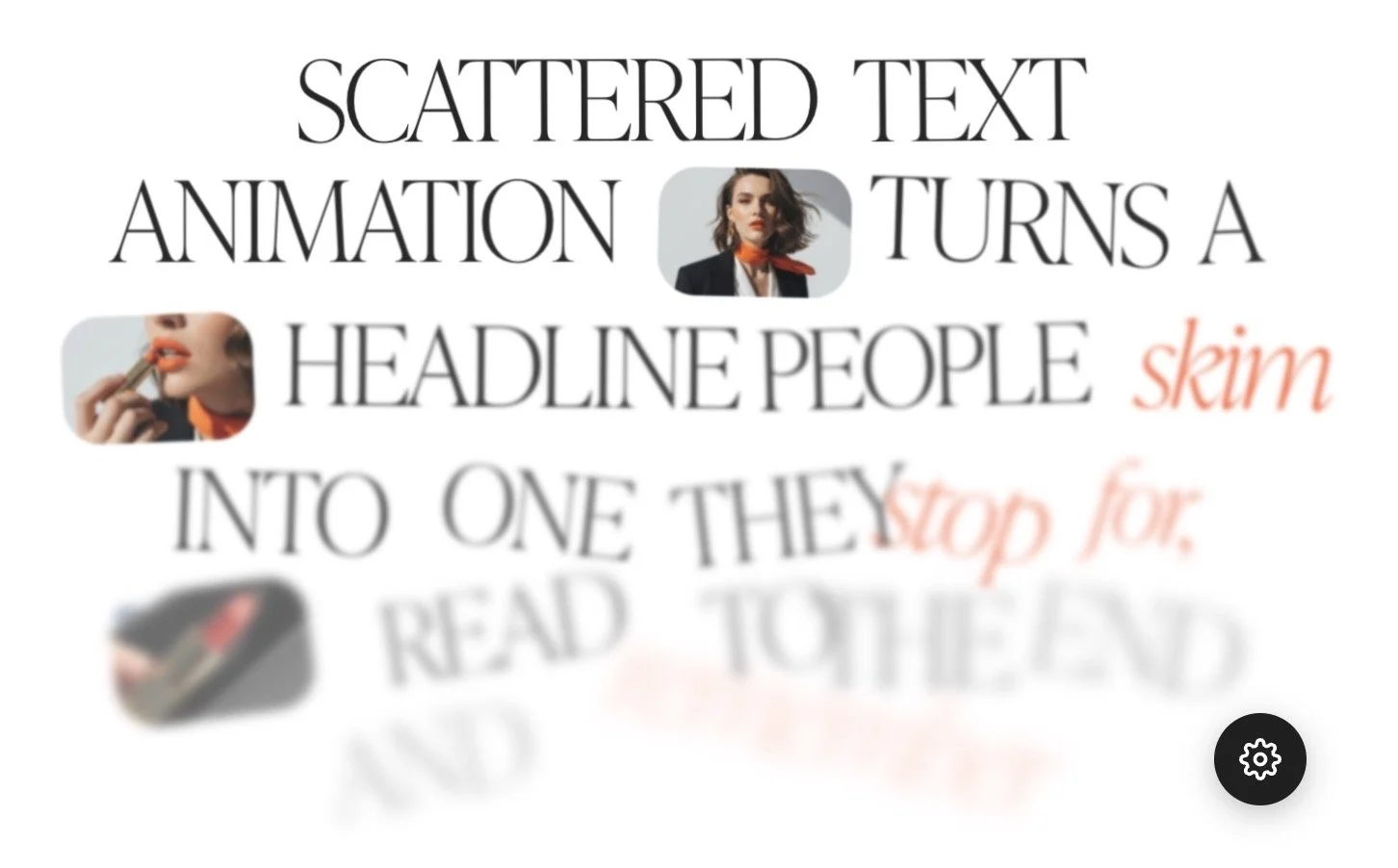
A text animation for Squarespace where your words start scattered and drift together into clean lines as your visitor scrolls.
Animation editor
Text
Each line assembles one after another.
Style the words
Click one or more words, then pick a style.
Nothing picked yet.
Text style
Uses your site's own styles from Design → Fonts.
Text size
Same size as your site's text style.
1× = your site's size. Mobile applies below 768px.
1rem ≈ 16px.
Image settings
Add pictures here, then place them in the text with the "+ Picture after this word" button above.
1× = as tall as a line of text.
Grows out of its place in the line.
How long the enlarging takes. Lower = faster.
Scatter settings
Where the words wait before they assemble.
Change the number to get a different scatter.
Lower = calmer scatter on phones.
Scroll settings
Follows the scroll: moves as you scroll, both ways. Plays once: runs when a line appears.
Higher = the text assembles with less scrolling.
Low = one line at a time. High = lines overlap.
Avoid Upper if the block is at the very bottom of the page.
Fine tuning
Tick a box to override your site's setting, or just drag the slider.
Save your changes
- Click Generate updated code
- Click Copy code
- Close this window (X in upper right)
- On this page, go into edit mode again, open this code block and select all (Ctrl/Cmd + A) — this deletes the existing code
- Paste the new code and Save
How to animate text in Squarespace?
Short answer:
Squarespace 7.1 can animate text on scroll with its built-in block animations, but the whole text block moves as one piece, usually a fade from faint to full colour.
To create a scattered text animation, where every word starts in its own place and drifts together as you scroll, you paste a ready-made code block and adjust it with sliders. You need a Core plan or higher for that, because it uses custom JavaScript.
What is a scattered text animation?
A scattered text animation is a text reveal animation on scroll. Your words start spread across the section, faded, tilted and a little blurred. As the visitor scrolls, each word drifts on its own path and settles into clean lines. Scroll back up and they drift apart again.
You've probably seen it on Framer and Webflow sites, where it makes one sentence feel like a small moment instead of another line of copy.
Where it works well:
Your hero headline or brand promise, the one sentence you want every visitor to read
An about page intro, where your story arrives word by word
A portfolio statement, with one of your photos sitting inside the sentence
A sales page promise, just above the offer
A shop's brand story, with a product photo tucked into the line
When to skip it:
Long paragraphs. Keep it to a short statement, about 8 to 25 words
Text people need to read instantly, like prices, opening hours or legal notes
A section that already has another strong animation, where the two fight for attention
How to add text animation in Squarespace 7.1
1. Built-in Squarespace block animations (free).
Squarespace 7.1 lets you animate a single block without code. For text, the classic choice is a fade on scroll: the text starts faint and reaches full colour as the visitor scrolls past. If a gentle fade is all you need, here is how to set it up:
Open your page and click Edit.
Click the text block you want to animate.
In the block's options, open Animations.
Choose the On Scroll trigger, so the animation follows the visitor's scroll.
Set the starting opacity lower (for example 20%) so the text begins faint.
Adjust the timing, click Save and check the page in preview.
What it can't do: the whole block animates as one piece. Every word fades at the same moment, in the same way and from the same place. You can't scatter the words, tilt them, blur them one by one or place a photo inside the sentence, and the phone version moves exactly like the desktop one. Because it's the built-in effect, your visitors have also seen it on many other Squarespace sites.
For subtle fades across a whole page, this is the right tool and it's free. Use it there.
2. Custom code (write it yourself or hire a developer).
To scatter text, the code has to split your sentence into separate words, give each word its own starting position, tilt, size and blur, then move every word back into place in step with the scroll, in both directions.
The hard parts come after that: keeping the lines right when the screen is resized, calmer movement on phones, using your site's own fonts, placing images between words, and staying smooth with many words on the page. If you code, it's a fun project. If you don't, a developer will usually charge far more for it than a ready-made block costs.
3. Ready-made scattered text animation (easy copy-paste solution).
Animation editor
Text
Each line assembles one after another.
Style the words
Click one or more words, then pick a style.
Nothing picked yet.
Text style
Uses your site's own styles from Design → Fonts.
Text size
Same size as your site's text style.
1× = your site's size. Mobile applies below 768px.
1rem ≈ 16px.
Image settings
Add pictures here, then place them in the text with the "+ Picture after this word" button above.
1× = as tall as a line of text.
Grows out of its place in the line.
How long the enlarging takes. Lower = faster.
Scatter settings
Where the words wait before they assemble.
Change the number to get a different scatter.
Lower = calmer scatter on phones.
Scroll settings
Follows the scroll: moves as you scroll, both ways. Plays once: runs when a line appears.
Higher = the text assembles with less scrolling.
Low = one line at a time. High = lines overlap.
Avoid Upper if the block is at the very bottom of the page.
Fine tuning
Tick a box to override your site's setting, or just drag the slider.
Save your changes
- Click Generate updated code
- Click Copy code
- Close this window (X in upper right)
- On this page, go into edit mode again, open this code block and select all (Ctrl/Cmd + A) — this deletes the existing code
- Paste the new code and Save
How to add a ready-made scattered text animation (Copy-paste).
I built the Scattered Text Animation for Squarespace 7.1 for people who want this effect without writing code. You paste one code block, then shape everything in a visual editor that opens from a small gear icon over the block.
Type your text, click a word to make it bold, italic, underlined or accented, drop photos between words and drag sliders while the words rearrange in front of you. There are more than 45 settings, and none of them are in the code.
Squarespace built-in animations on scroll vs. Scattered text animation: What you get
Built-in fade |
Scattered text |
|
|---|---|---|
What moves |
Built-in Animations Whole block, one piece |
Scattered text Animation Every word on its own path |
Before it appears |
Built-in animation Faint |
Scattered text animation Faint, spread, tilted, resized, blurred |
Photos in the line |
Built-in fade No |
Scattered text Yes, with hover enlarge |
Style one word |
Built-in fade Moves with the block |
Scattered text Click it: bold, italic, underline, 2 accents |
Scroll control |
Built-in fade Trigger + timing |
Scattered text Both directions or once, overlap, 6 easings |
New arrangement |
Built-in fade No |
Scattered text 60 scatter patterns |
Phone settings |
Built-in fade Same as desktop |
Scattered text Own size, scatter, photo height |
Settings |
Built-in fade A few |
Scattered text 45+ in a visual editor |
Price |
Built-in fade Included |
Scattered text $29 / $69 one-time |
How to add a scattered text animation in Squarespace, step by step (beginner-friendly)
Before you start: you need Squarespace 7.1 on a Core plan or higher. On a lower plan, custom JavaScript doesn't run, so the animation won't either.
Write your line. Keep it to one strong statement of about 8 to 25 words, and decide where the line breaks go. Pick one or two words you want to stand out. Choose your photos (optional). One to three small photos work best. Resize them to about 1500 px wide. The animation asks Squarespace for a lighter version anyway.
Add a code block and paste the code. Click Edit on your page, add a blank section, click Add Block, choose Code and paste the scattered text code. Stretch the block. In the Fluid Engine grid, drag the code block to the full width of the section so the words have room to scatter.
Make it yours in the visual editor. Click the gear icon over the block. Type your text, click words to style them, add your photos, then set the scatter, tilt, blur, scroll timing and phone settings with sliders. Save and check the live page. Code block scripts don't run inside the Squarespace editor, so look at the page in preview or logged out to see the words move.
Design tips for a scattered text animation
Keep it short. One statement reads beautifully. A whole paragraph turns into a puzzle.
Accent one or two words. A single highlighted word can carry the whole sentence. Five highlighted words carry nothing.
Go slower than you think. Let it take more scrolling than feels natural at first. Slow and deliberate feels premium, fast feels like a glitch.
Calm it down on phones. Use a smaller scatter on mobile so no word flies off a narrow screen.
One photo per line. A photo inside the sentence is a lovely surprise. Three in a row is a gallery.
Give it space. Leave empty room above and below the section, so the words have somewhere to wander.
Use one per section. Two scattered headlines on the same screen compete. Put the second one further down the page.
FAQ about text animation in Squarespace
Does Squarespace have a scattered text animation built in?
No. Squarespace’s block animations can fade, move or scale a whole text block as you scroll, but every word moves together. Scattering the words one by one needs custom code, for example a ready-made code block.
How do I animate text in Squarespace without coding?
Click Edit on your page, click the text block, open Animations and choose the On Scroll trigger. Pick the Fade preset or set the starting opacity lower, for example 20%, then adjust the timing and save. This fades the whole block at once. For words that scatter and drift into place, you need a ready-made code block.
Why can’t I see my scattered text animation moving in the Squarespace editor?
Code block scripts don’t run inside the Squarespace editor. Save your changes, then look at the page in preview or while logged out to see the words move.
How many words should a scattered text animation have?
Keep it to one short statement of about 8 to 25 words. A long paragraph turns into a puzzle, and text people need to read instantly, like prices, opening hours or legal notes, should not be animated.
Is Squarespace’s built-in text animation free?
Yes. Block animations are built into Squarespace 7.1 and need no code. They animate the whole text block as one piece, usually a fade from faint to full colour.
Can I put photos inside animated text in Squarespace?
Not with the built-in block animations, which move the whole block as one piece. With a ready-made scattered text code block you can drop one to three small photos between the words.
Does it work in Squarespace 7.0?
No. This guide and the animation are for Squarespace 7.1, including Fluid Engine and classic sections.
Want the scattered text animation without coding?
Get a clean, fully customizable version — built specifically for Squarespace 7.1, tested & designed to be edited by non-coders. Copy. Paste. Done.